NUSI·ONE
NUSI·ONE is a desktop AI workspace that brings AI tools, projects, and conversations together in one place.
Option 1: Choose a key in NUSI·ONE
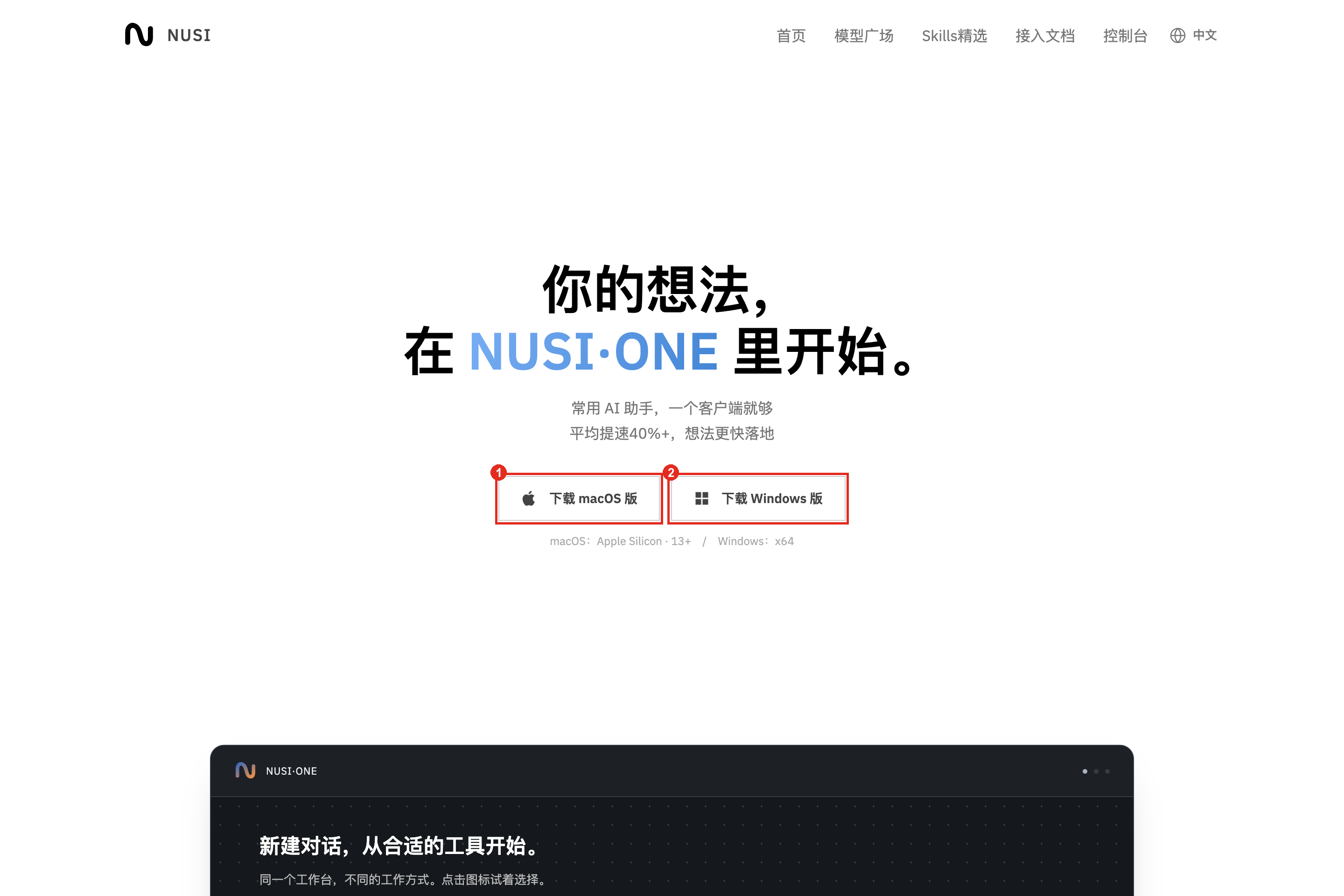
- 1Download and install
Visit Download NUSI·ONE and install the app.
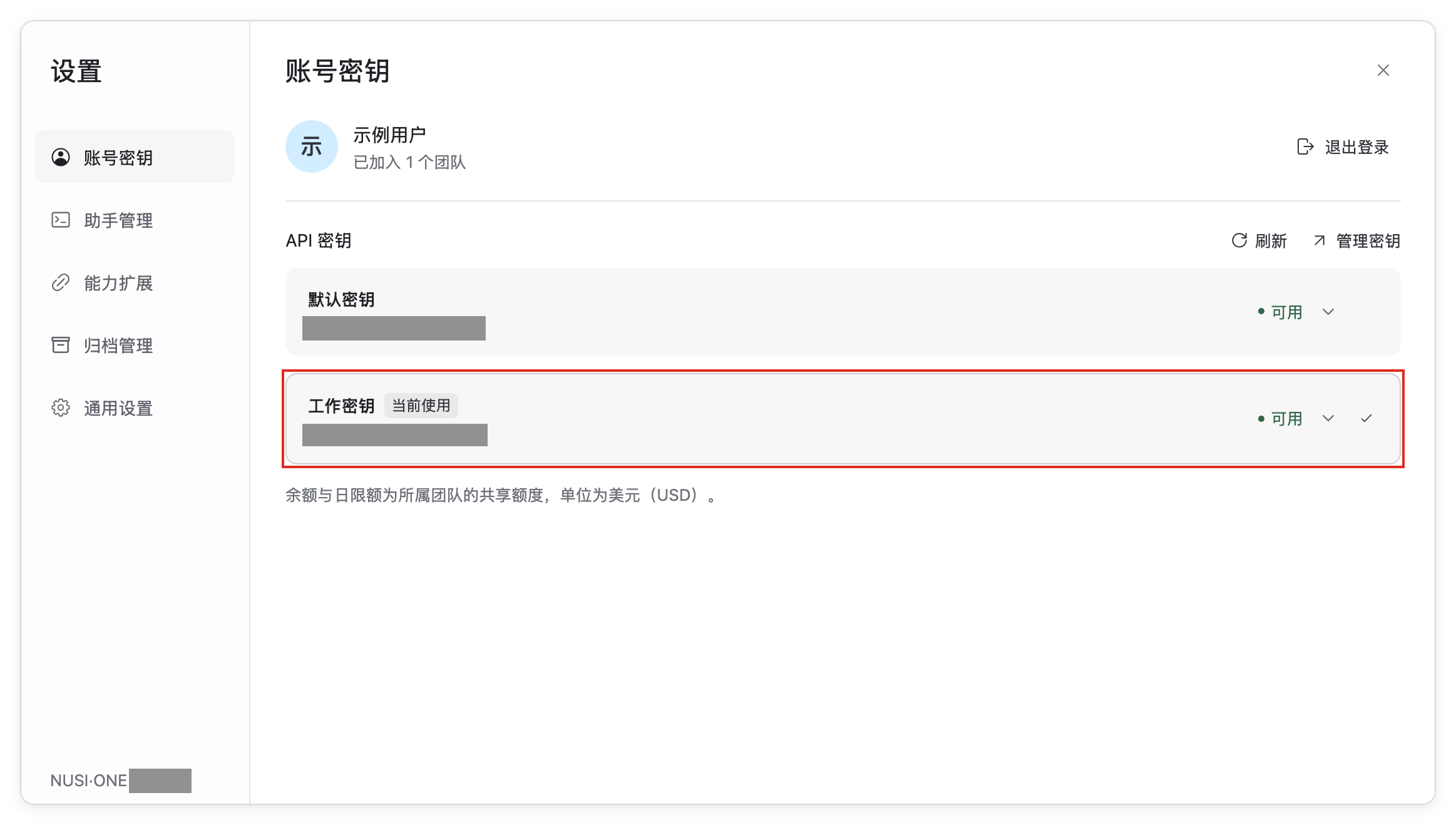
- 2Sign in and choose an API key
Sign in to your NUSI account, open Settings at the lower left, and choose an available API key under Account & Keys. If you do not have one, create an API key in the console, then return to the app and select it.
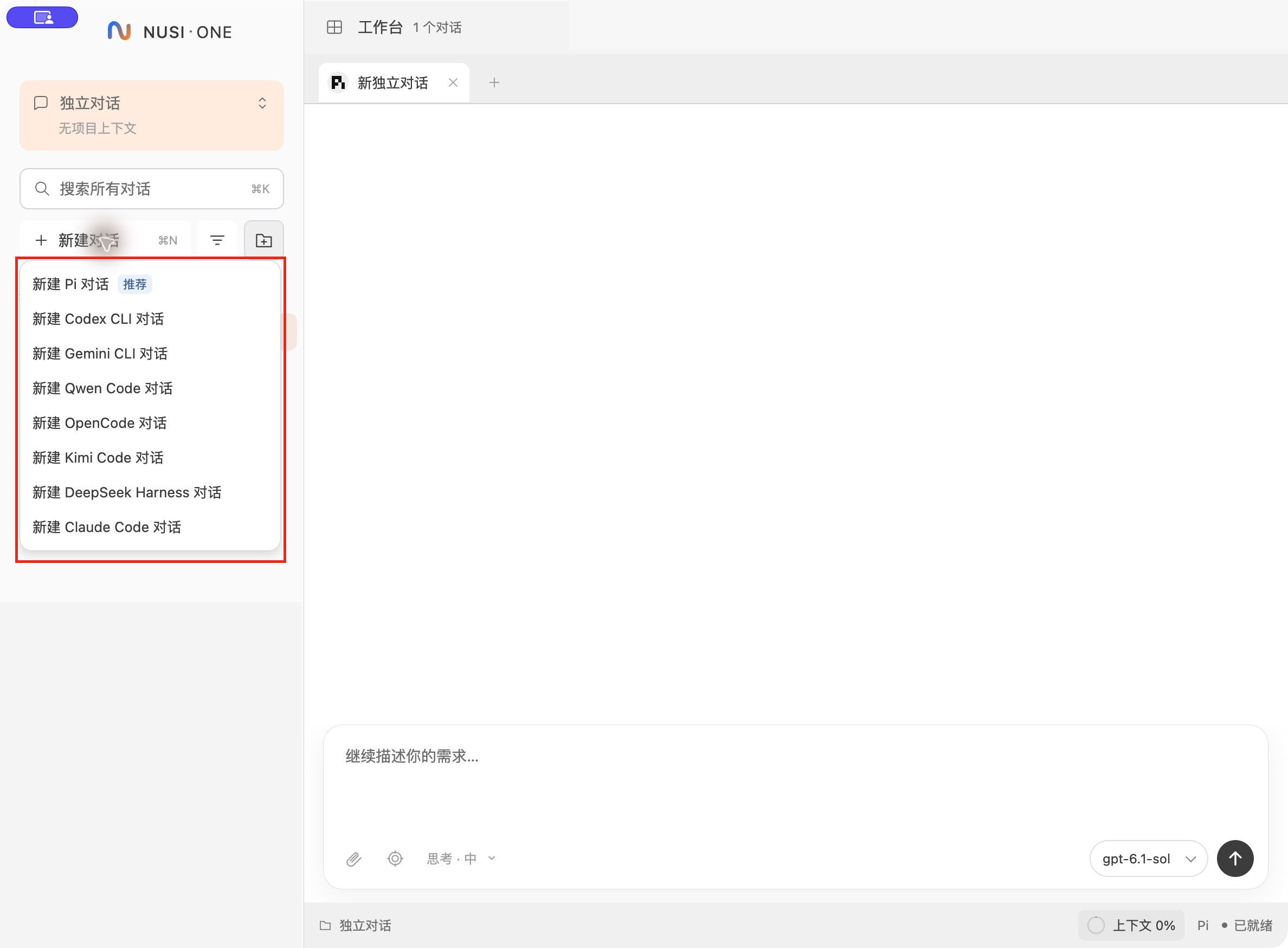
- 3Open a project and start a conversation
Create or open a project, choose a local folder, then start a conversation and select a CLI tool and an available model. Send a short message. If the tool is missing, follow the app’s installation prompts first.
Option 2: Configure from API key management
Select NUSI·ONE in the API key editor to open the app and use the selected key.
- 1Open API keys in the console
Go to API keys. Create a key if you are new, or open the editor for an existing available key.
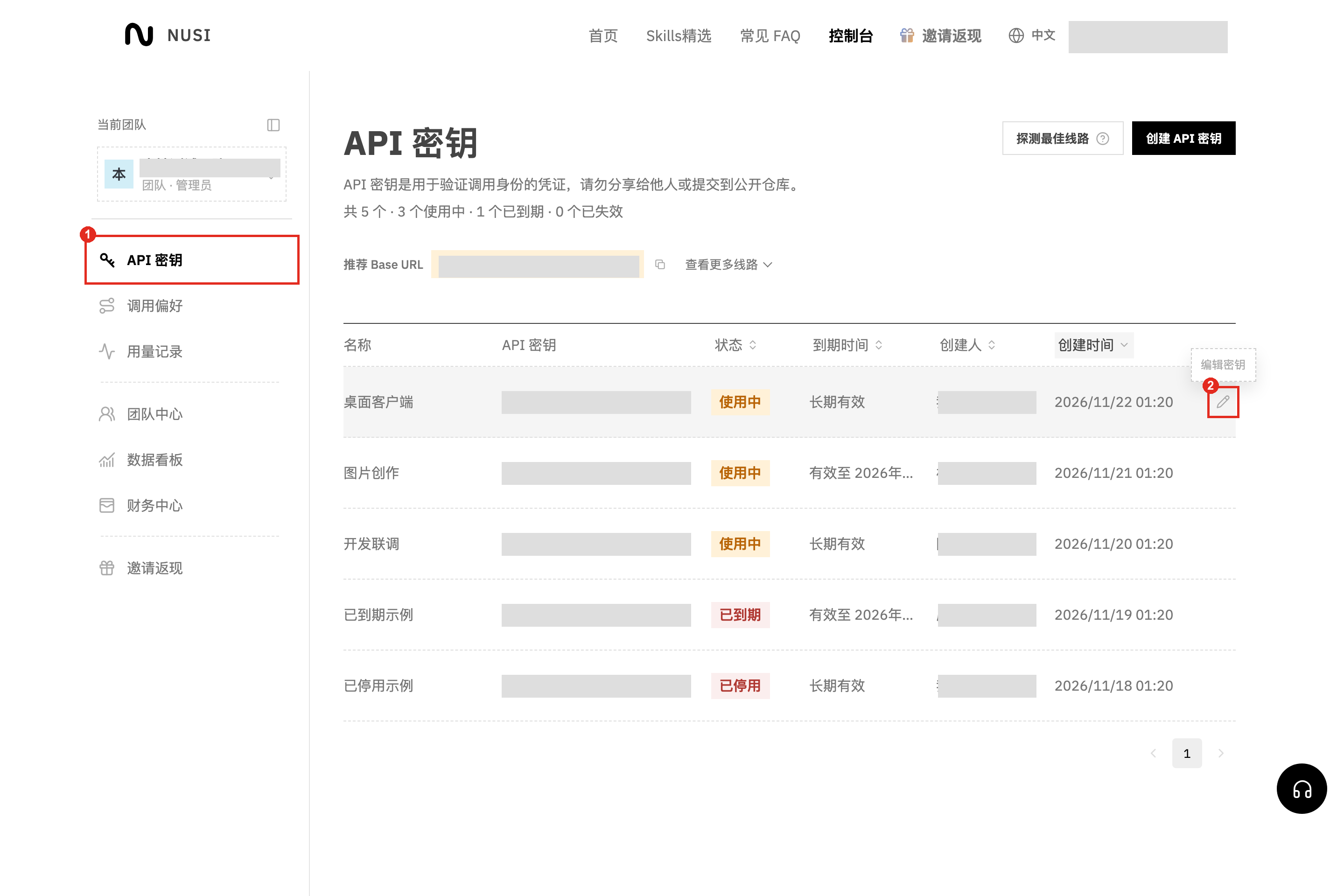
- 2Select the NUSI desktop app
In the key creation dialog or editor, select “Use in NUSI desktop app”. If NUSI·ONE is not installed, follow the page prompts to download and install it.

- 3Open the app and confirm the key
If your browser asks permission to open NUSI·ONE, allow it. Sign in to the NUSI account associated with the key; the app will select that key. Then open a project and start a conversation.
Use the steps above to install and configure NUSI·ONE on Windows or macOS. Install and open the client, then return to the key panel to continue setup.