DeepSeek Harness
DeepSeek Harness is a tool for AI coding tasks. It brings models and development tools together around a codebase to help developers understand, modify, and verify code.
Option 1 (recommended): Use NUSI·ONE
- 1Download and install
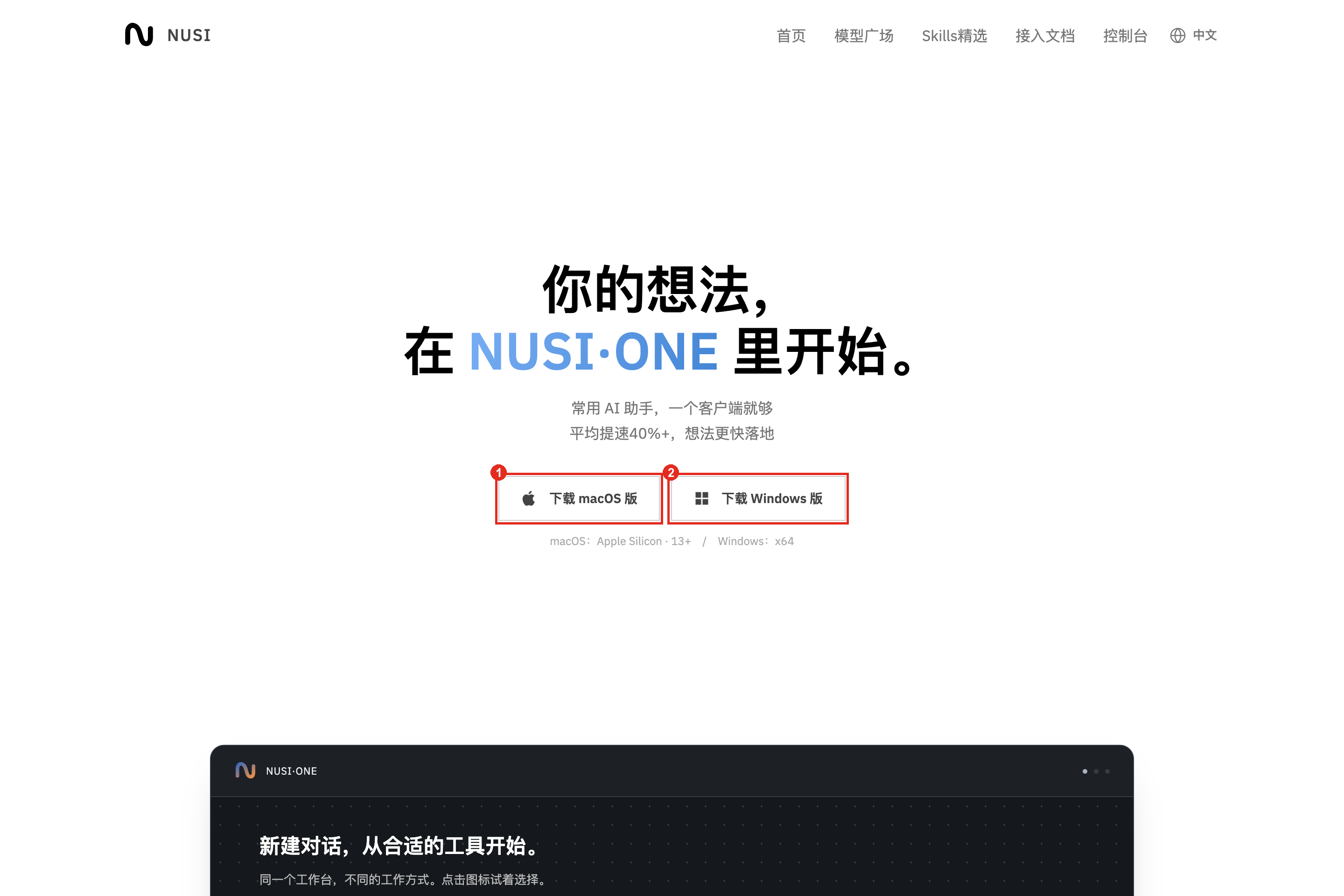
Install the client from the NUSI·ONE download page. Windows (x64) and macOS 14 or later on Apple silicon are supported.
- 2Sign in and select a key
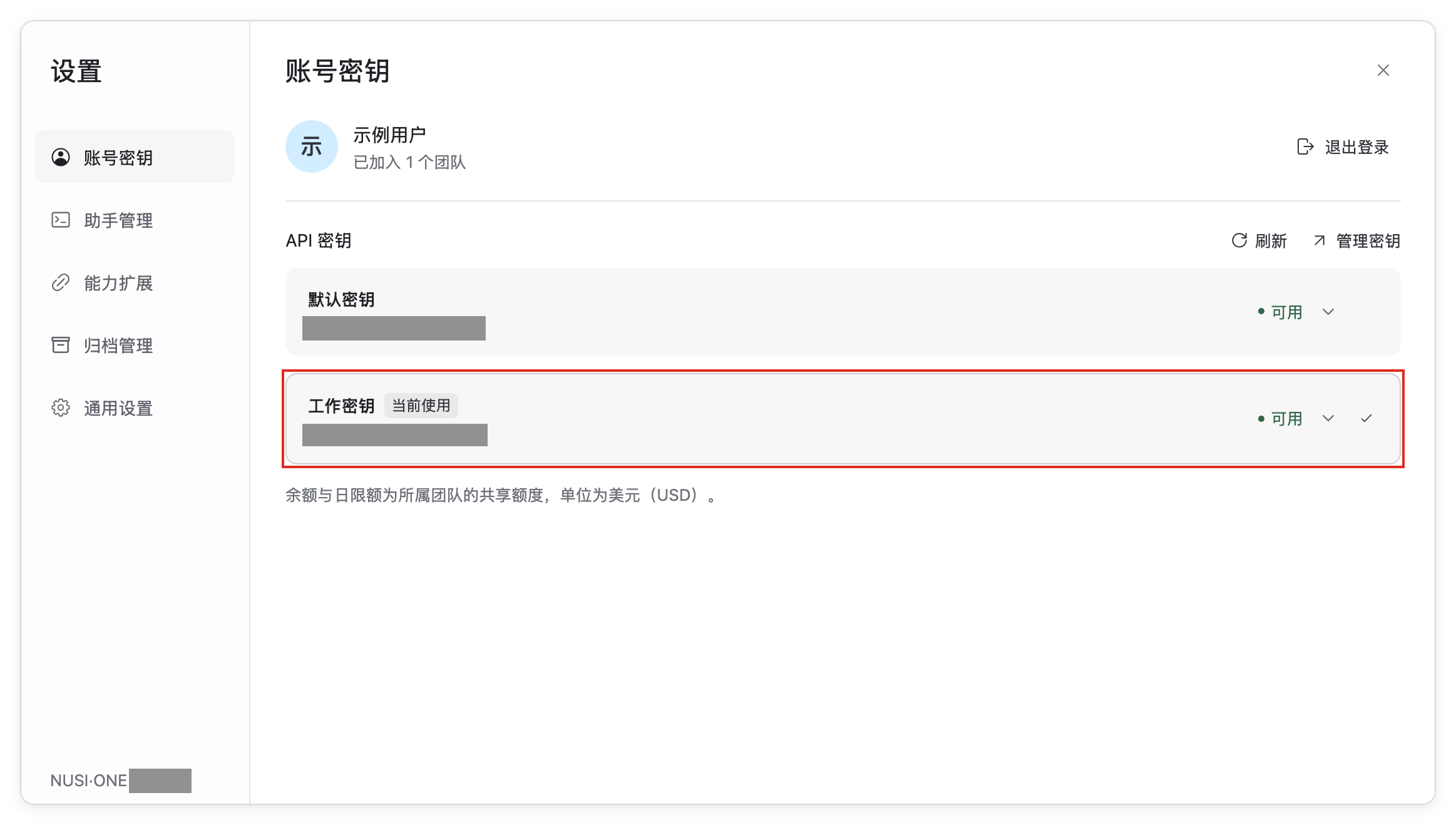
Sign in to your NUSI account and select an available API key you created from the account menu.
- 3Install DeepSeek Harness
Find DeepSeek Harness under Tool Installation in settings and follow the prompts.
- 4Open a project and start a conversation
Open a local project or folder, start a conversation with DeepSeek Harness, select an available model, and send a message.
Option 2: Install and configure DeepSeek Harness yourself
- 1Install DeepSeek Harness
Install Node.js LTS, then run in a terminal:
Terminal / PowerShellnpm install -g @deepseek-ai/dsh dsh --version - 2Configure the connection
Create a key on the API keys page, select a model compatible with the protocol, and replace the placeholders. Shell examples use macOS or Linux; in Windows PowerShell use $env:NAME for environment variables.
Development preview: save this as nusi-patch.json, set NUSI_API_KEY in the terminal, and run dsh --profile web --patch nusi-patch.json. Select a Chat Completions-compatible model.
nusi-patch.json[ { "id": "agent-default-model", "config": { "provider": "nusi", "model": "YOUR_MODEL_ID" } }, { "id": "llm-pi-ai", "config": { "providers": { "nusi": { "apiKeyEnv": "NUSI_API_KEY", "api": "openai-completions", "baseURL": "https://nusi.si/v1", "models": [ { "id": "YOUR_MODEL_ID" } ] } } } } ]Choose your key on the API keys page and set the
NUSI_API_KEYenvironment variable in the terminal before starting the tool. - 3Open a project and verify
Open a test project and send a message, then check the console usage record. For a 401 or 403, check the key and permissions; if the model is unavailable, check its ID, protocol, and URL.