NUSI·ONE Productivity Guide
NUSI·ONE is a desktop AI workspace for everyday work. It brings assistants, project materials, and conversations together to reduce repeated setup and app switching, while letting you choose tools and views for each task.
Where NUSI·ONE Saves Time and Cost
| Result | Published Benchmark | What It Means for Your Work |
|---|---|---|
| Completed Response Speed | Average improvement: 25.0% | Faster time from a question to a complete response than commonly used tools or clients, using the same model and question. |
| Token Consumption | Reduction: 43.8% | Fewer total tokens than commonly used tools or clients in tasks with comparable answer quality. |
| Actual Cost | Reduction: 13.6% | Lower actual spend than commonly used tools or clients with the same model and task. |
These figures come from live monitoring published on the NUSI website. Results vary by use case. Token and cost reductions differ because prices, input and output rates, and caching also affect cost.
Download and Install
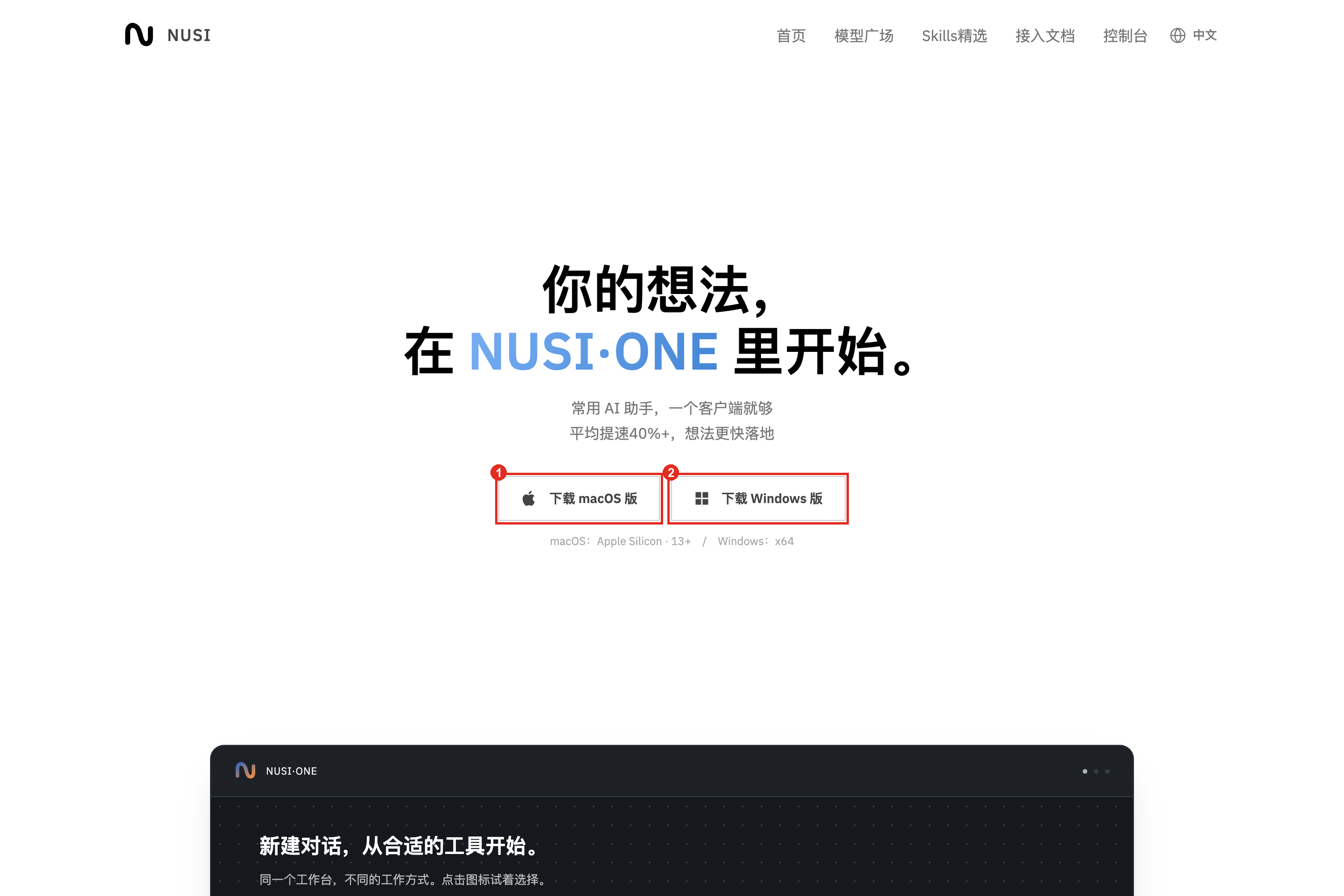
Open the NUSI·ONE download page. Select Download macOS for a Mac, or Download Windows for a Windows PC, then install and open the app.
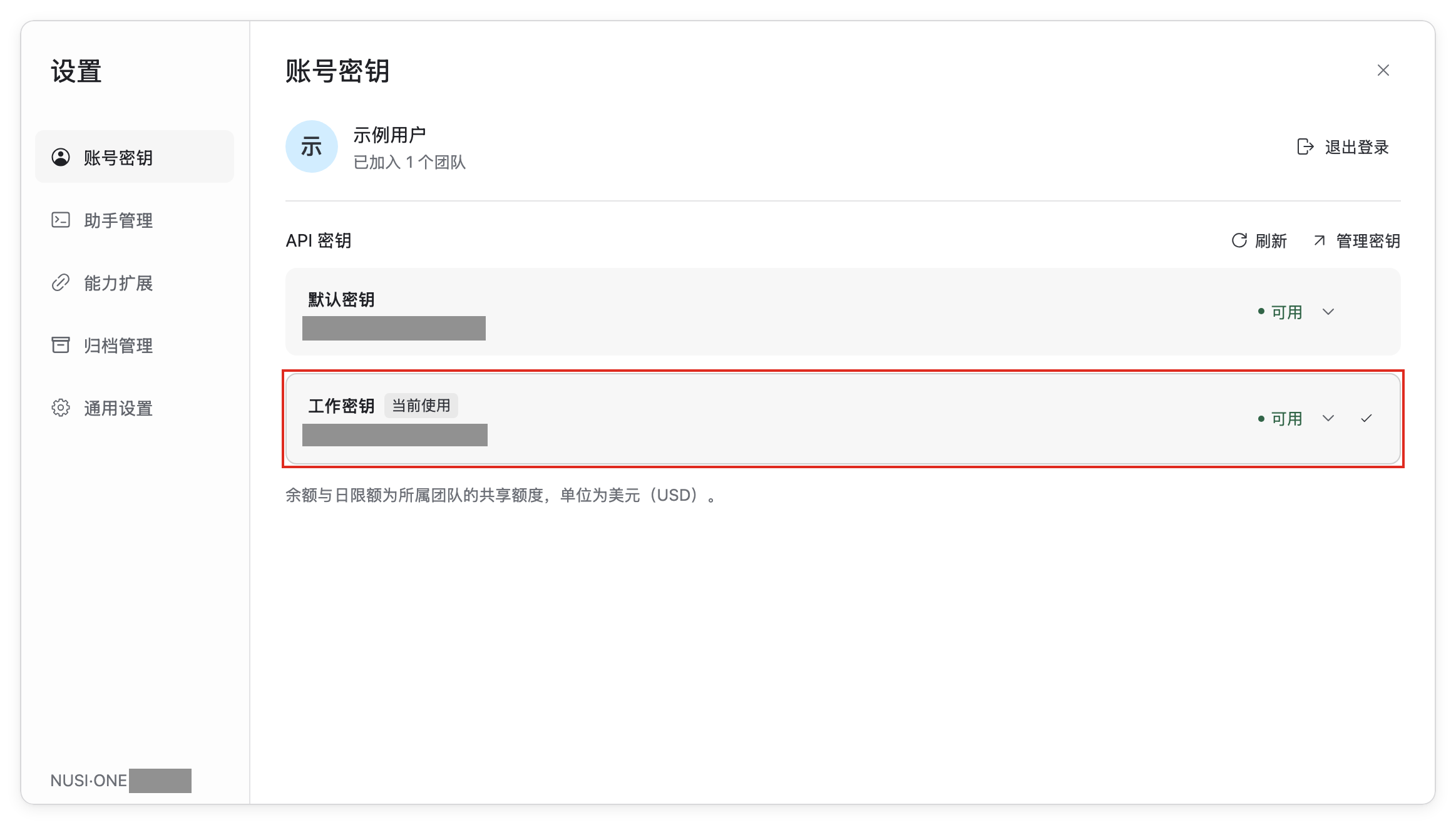
Select an Available API Key
- Select your avatar at the lower left of the workspace to open Settings.
- Select Account & Keys in the left sidebar of Settings.
- Find the available key you want to use and select the control on the right of its row. The In Use label confirms your selection.
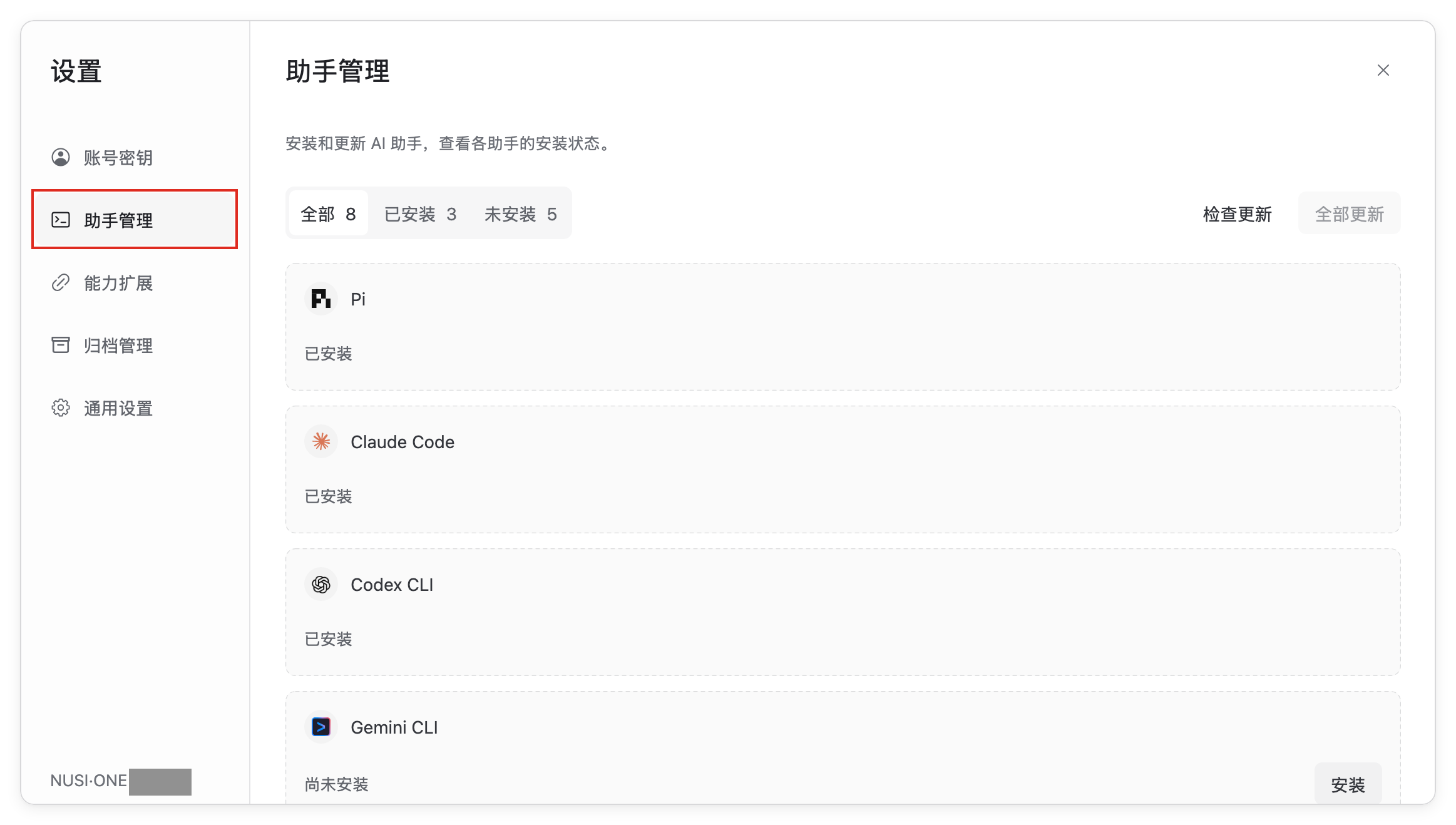
Install and Launch AI Assistants as Needed
NUSI·ONE brings together AI assistant tools including Codex, Claude Code, Pi, and Gemini CLI. Choose a tool for your task, install it as needed, and launch it in the same workspace.
- Select your avatar at the lower left to open Settings, then choose Assistant Management. Find the assistant you want to use and select Install.
- Return to the workspace, select New Conversation, and choose the installed assistant to start using it. Assistants that are already installed can be selected directly.
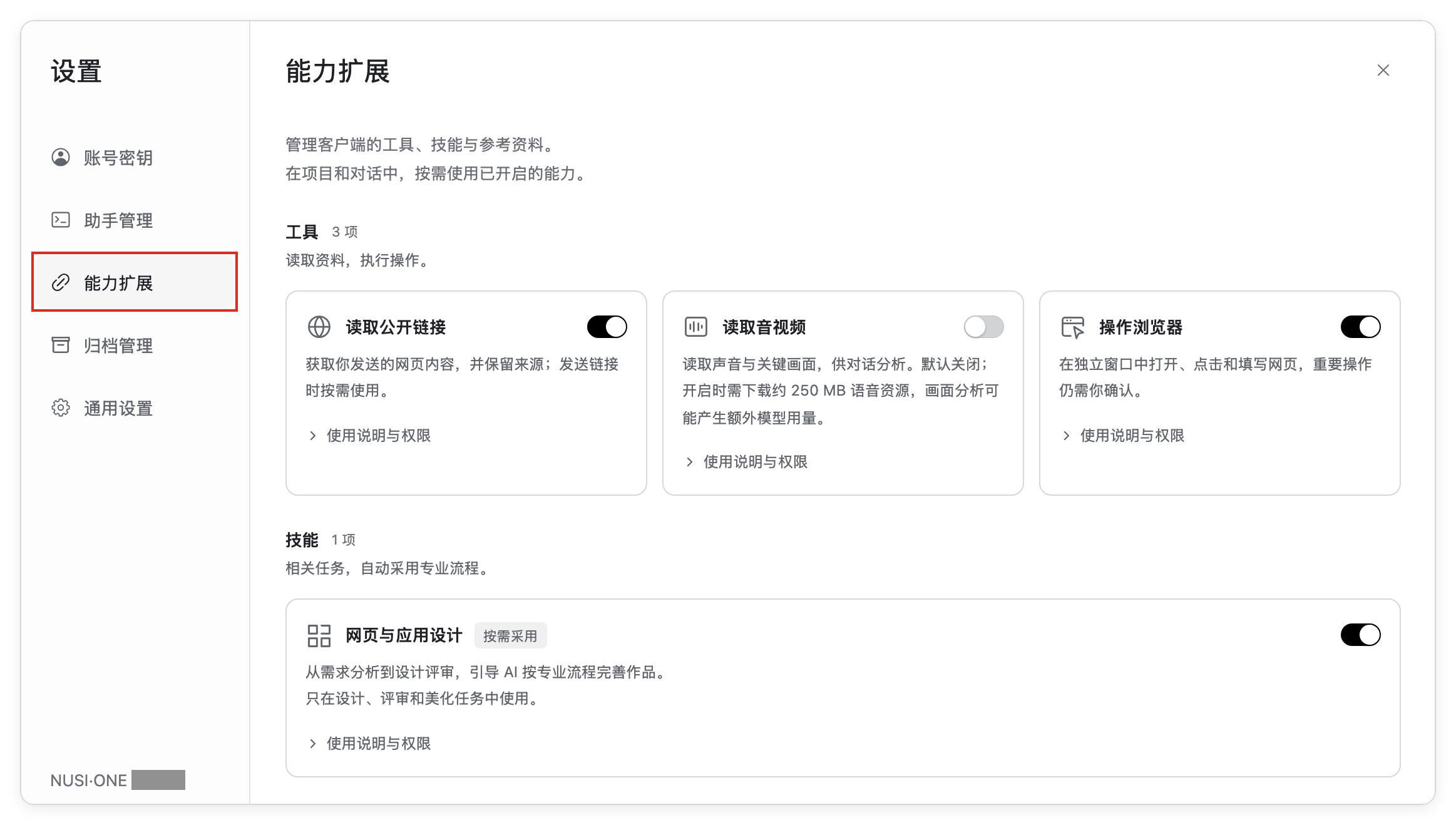
Extend the Client’s Capabilities
Capability Extensions brings together tools, skills, and reference materials in the NUSI·ONE client for use across your project work and conversations.
- Select your avatar at the lower left to open Settings, then choose Capability Extensions and turn capabilities on or off for your work.
- For example, enable Read Public Links to read webpages or Browser Operations to interact with them. Expand Usage and Permissions on a card to learn its purpose and scope.
Switch Between Tab and Tile Views
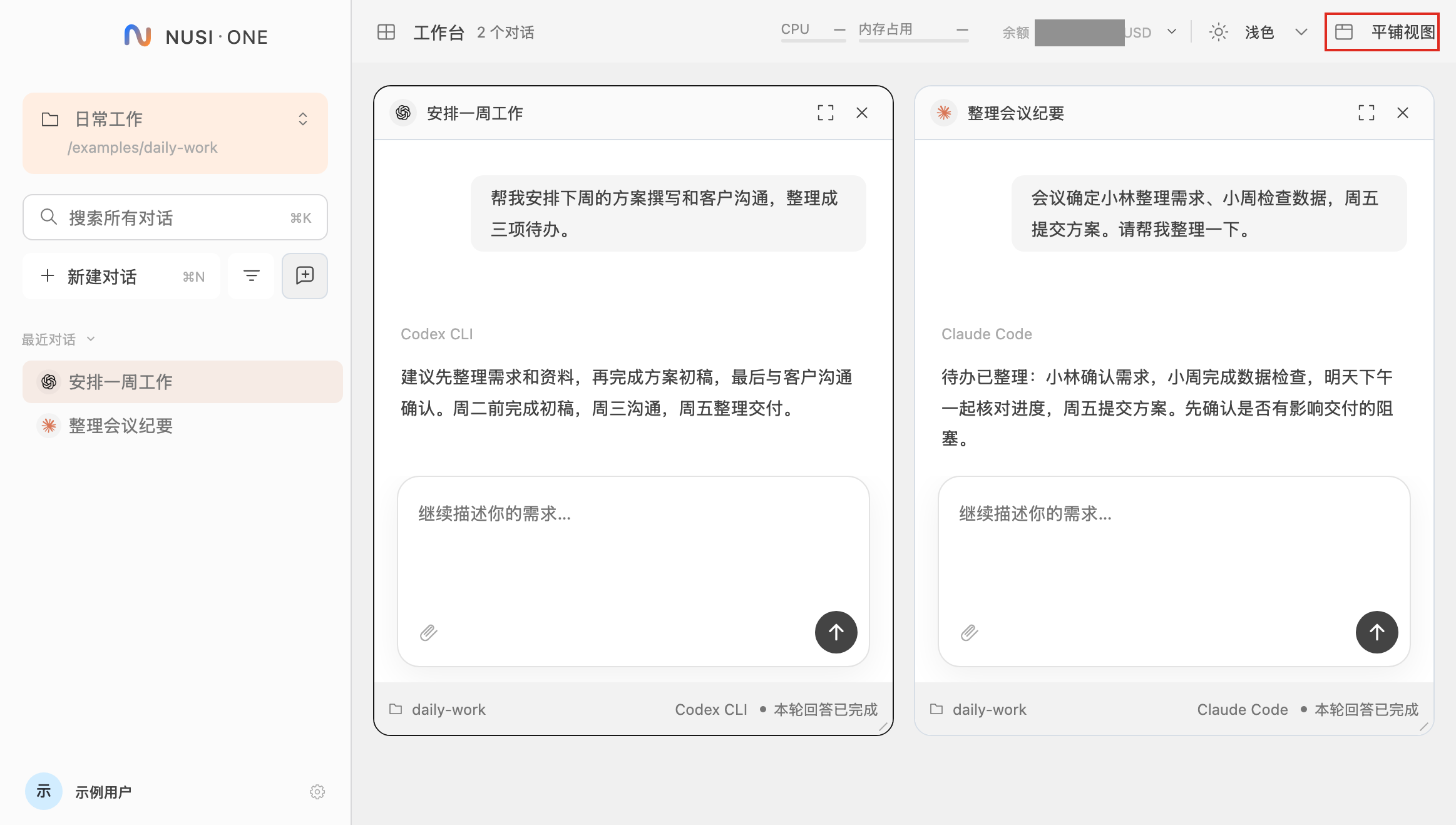
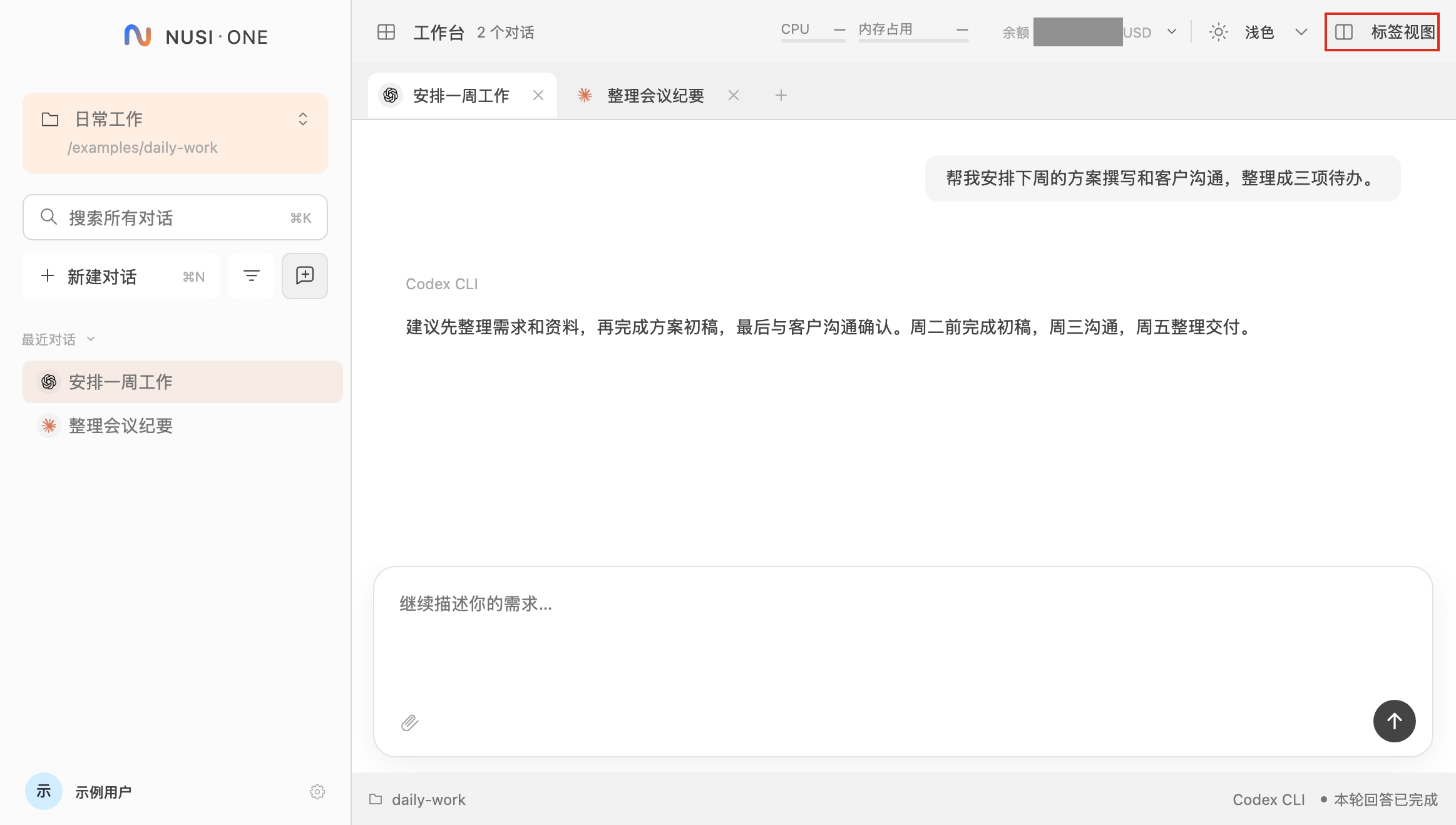
Select the view control at the upper right. Tab view focuses on one conversation at a time. Tile view shows multiple conversations together, making it easier to compare assistant responses or track several tasks. Switching views does not create new conversations.
For step-by-step installation and initial connection setup, see Quick Start.